Lesson 5
Running the game
Pressing play for the very first time and clicking that clown.
Press play to start
Ok, we’ve got all our objects created, we’ve got our fonts, our sprites, our scripts, our rooms. All that’s left is to press the play button and try it out.
Ordinarily, you would be constantly testing the game out as you developed it, especially when you are learning, as you’re likely to make mistakes and it’s easier to track them down when you’ve only made small changes since the last time you ran the game successfully.
So let’s make sure we have the correct platform and output selected. You’ll notice a little crosshair icon in the very top-right side of GM. Click it to open up the Targets menu.
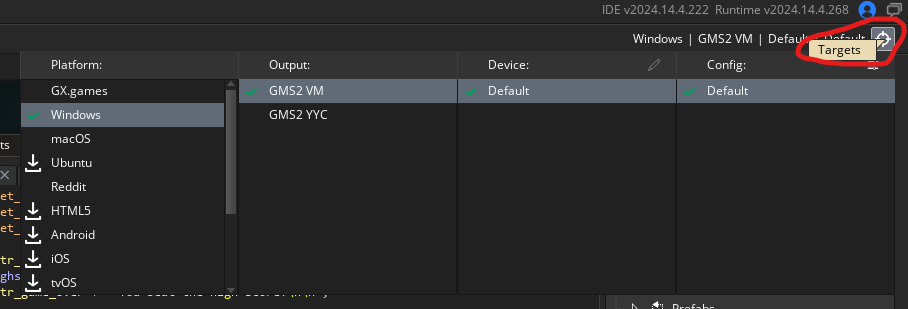
Make sure you have Windows (or macOS I guess, if you’re using a Mac) selected, and the output is GMS2 VM (we’ll discuss the difference between VM and YYC another time).
If they’re both correctly selected, then press the “Run” button.

If you’ve followed the instructions correctly, then the game should boot up and you should be able to start clicking that damn clown. Finally, revenge for all the effort you’ve had to put in so far!
If it doesn’t go so well and the game crashes, you’ve got a few options.
Download the original source code here: Click the Clown
A .yyz file is an exported GM project (meaning it has been compressed), so you can’t just load it like a normal project, you have to explicitly import it. Do so from the Welcome Screen here:
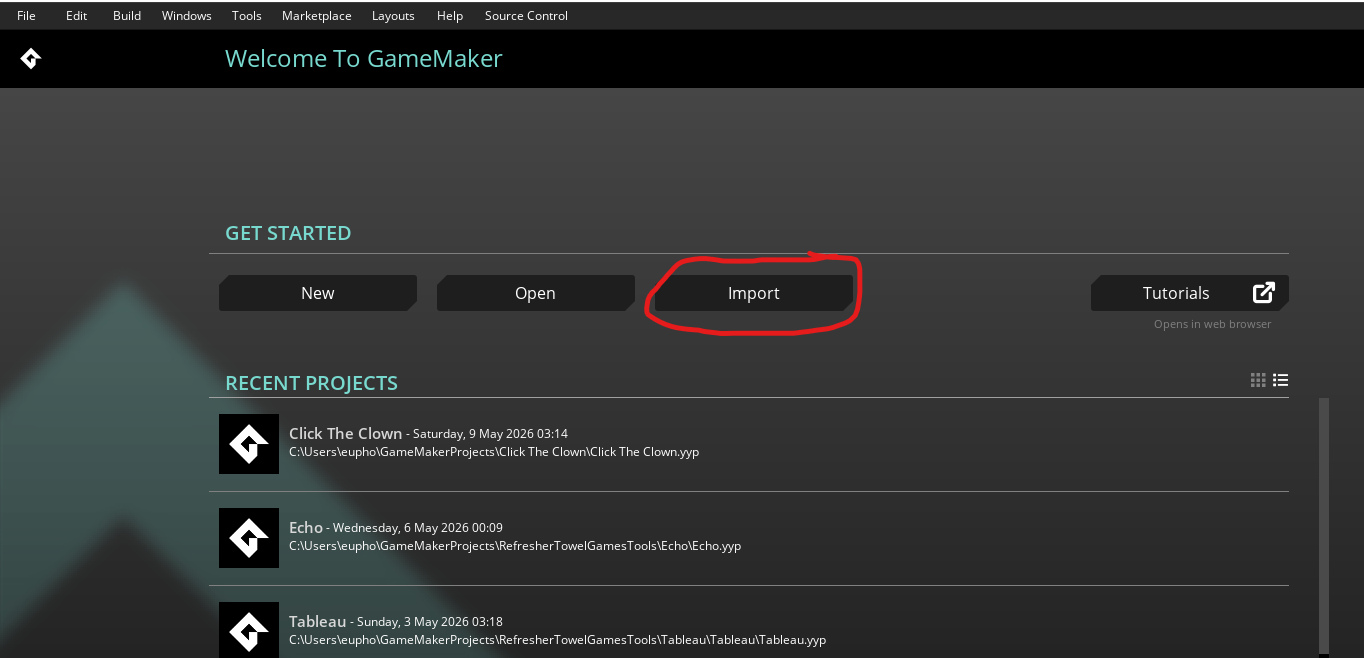
Then select the file you downloaded, and you should get the complete version of Click the Clown. Now you can look through your version and the completed version (if you open GM itself twice, you can have two projects going simultaneously) and see what differences you can find.
If you’re still having trouble after that then either:
- Join my Discord: RefresherTowel Games Discord. I’m always happy to help answer questions about these lessons.
- Join the GM Discord: GameMaker Discord.
- Join the GMC and create a forum post: The GameMaker Community.
Remember, when asking for help with programming always include the error message and, if at all possible, the code the error message is pointing at (I have a planned debugging course that should help with this).
Be explicit with what is going on. For instance, if the game runs but when you click the clown it crashes, then specify that that is what is happening.
The more detail and effort you put into asking for help, the better. “lol it doesnt work” is going to get answered differently and take longer to fix than a detailed description of what the problem is, with the error message and (hopefully) the code an error comes from.
Like GM Grove?
You've completed this little stretch of the grove!
Nice work! If you feel like this was a helpful experience, here are two useful ways to stay connected or help the site grow.
Support
GM Grove is totally free, but donations or subs help me spend more dedicated time writing and planning lessons, work on general improvements to the site and help offset any server costs I accrue.
Updates
Want the next path?
Get an email when new lessons are added. No spam, just a quick ping when a new knowledge bomb drops.