Lesson 4
Publishing to GitHub
Publish your local GameMaker repository to GitHub and learn how commit, push, and pull fit together.
Online, where all the cool gits hang out
Part of what makes Git great is having the project saved online so that local catastrophes are not project-ending.
That means we have one more simple step to perform. At the top of the window, there’s a button saying Publish repository. All we want to do is click it.
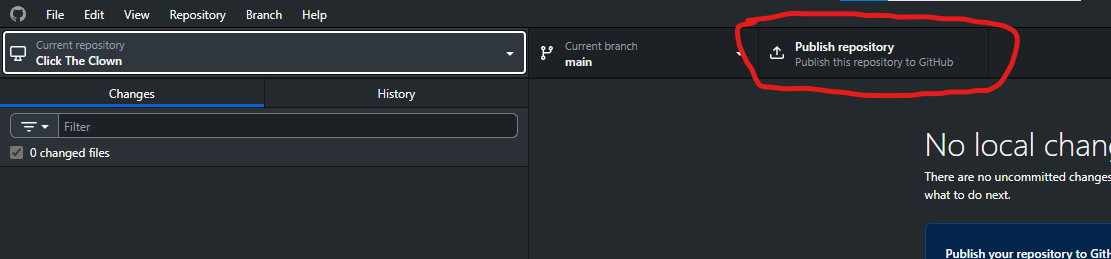
GitHub Desktop will pop up with the Publish Repository window.
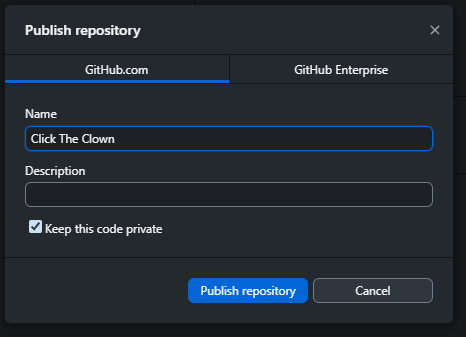
There’s a name, description and a little “Keep this code private” checkbox.
The private checkbox is personal choice depending on the project. Some stuff you want to keep for yourself, and some stuff is useful to have public, so you can easily share it around.
For our purposes, though, a private project is fine.
Add a description of the project, if you like, and then click Publish Repository at the bottom. Don’t
worry about the GitHub Enterprise tab, we just want GitHub.com (which should be selected by default).
Give GitHub Desktop some time to create the online repository and upload the current state of your project and that’s it. You now have a local and online Git repository.
The Git workflow
Whenever you commit a change, it gets saved locally. If you have local commits, the button that previously said “Publish repository” will now say “Push origin”.
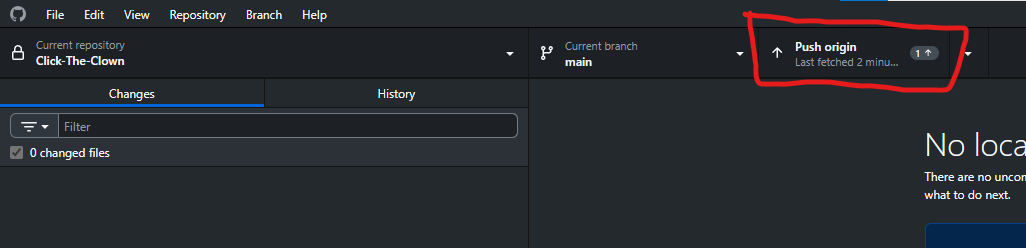
“Push” is Git-speak for “upload locally committed changes to your online repository”.
So you have a two-step rhythm: Commit locally, then Push online.
As long as you commit and push the changes you care about, you’ll be much safer from data loss.
Next we’ll learn how to easily undo mistakes or problems with your project.